Sending guide
How to send your TOMM newsletter
TOMM writes and designs your edition. You send it from wherever your contact list lives. Here's how to paste it into the four most common platforms.
Two copy formats
Pastes with styling preserved. Use this for Gmail, Outlook, or Apple Mail.
Raw HTML source. Use this for Mailchimp, kvCORE, Follow Up Boss, or any CRM with a source-code paste option.
Terms to know
The source or code view toggle. Almost every rich-text email editor has this button in its toolbar. Click it to flip between the visual preview and the raw HTML where you paste TOMM's code.
Your saved contact segment in kvCORE or Follow Up Boss. The group you're sending the newsletter to.
Gmail
Best for one-to-one or small targeted sends. Gmail keeps the styling when you paste directly into a compose window.
- 1In your TOMM dashboard, open your newsletter and click Done.
- 2Click Copy Formatted (the top option). You'll see a confirmation tick.
- 3Open Gmail and click Compose.
- 4Click into the message body and paste (⌘V on Mac, Ctrl+V on Windows).
- 5Add your recipients, set the subject from the Suggested Subject Line, and send.
Good to know
- · If the styling looks off, undo (Cmd+Z) and paste again. Gmail can flip between rich and plain on rapid pastes.
- · For larger lists, use Gmail's multi-send so each recipient gets their own To: line.
Mailchimp
Best for list-wide sends. Use the Paste in Code option to keep TOMM's exact HTML.
- 1In your TOMM dashboard, open your newsletter and click Done.
- 2Click Copy HTML Code.
- 3In Mailchimp, create a new email (Campaigns → Create → Email).
- 4On the template screen, click Use HTML to code my own, then Paste in Code.
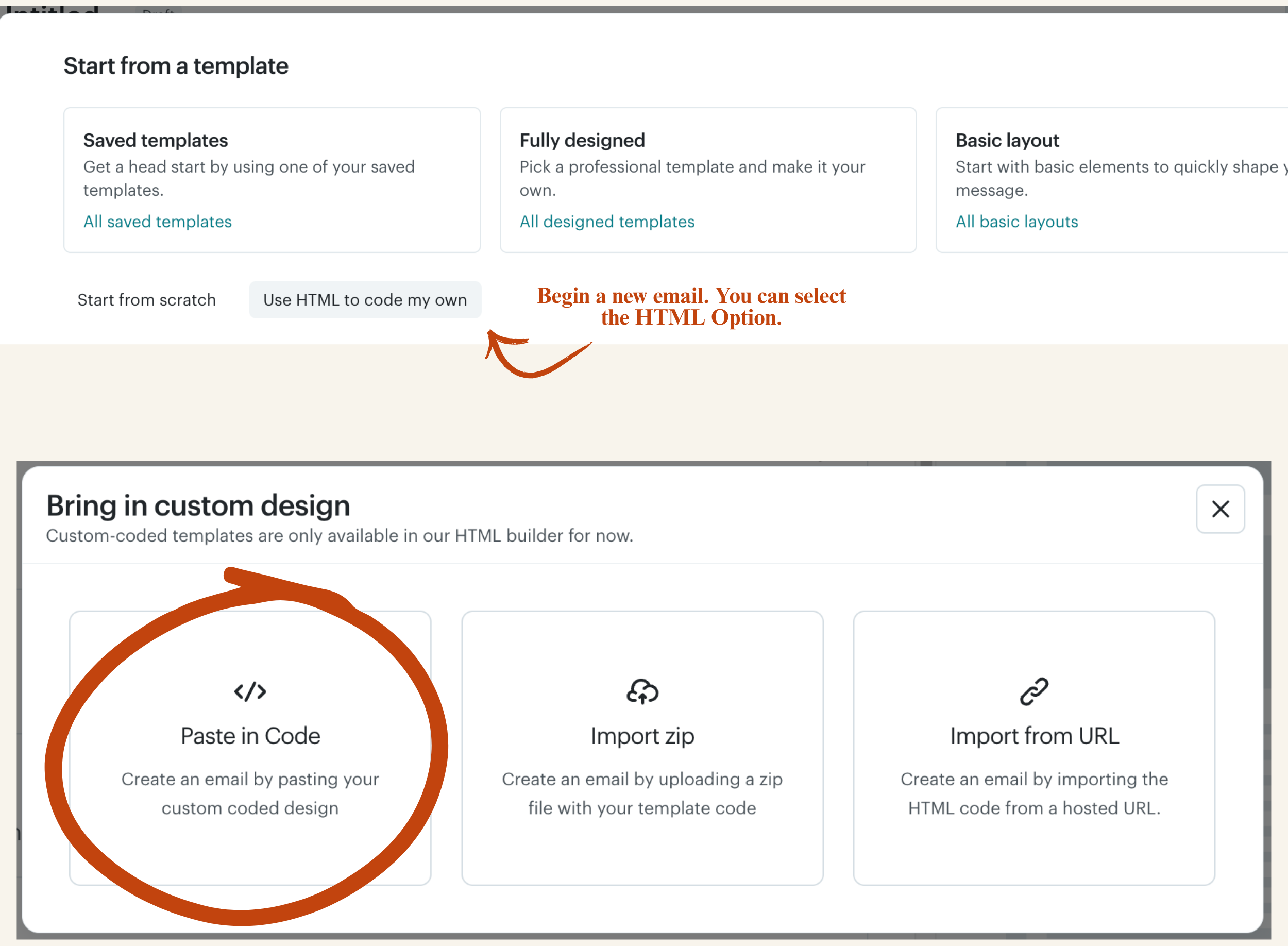
- 5Paste your TOMM HTML into the code editor on the right, then click Save.
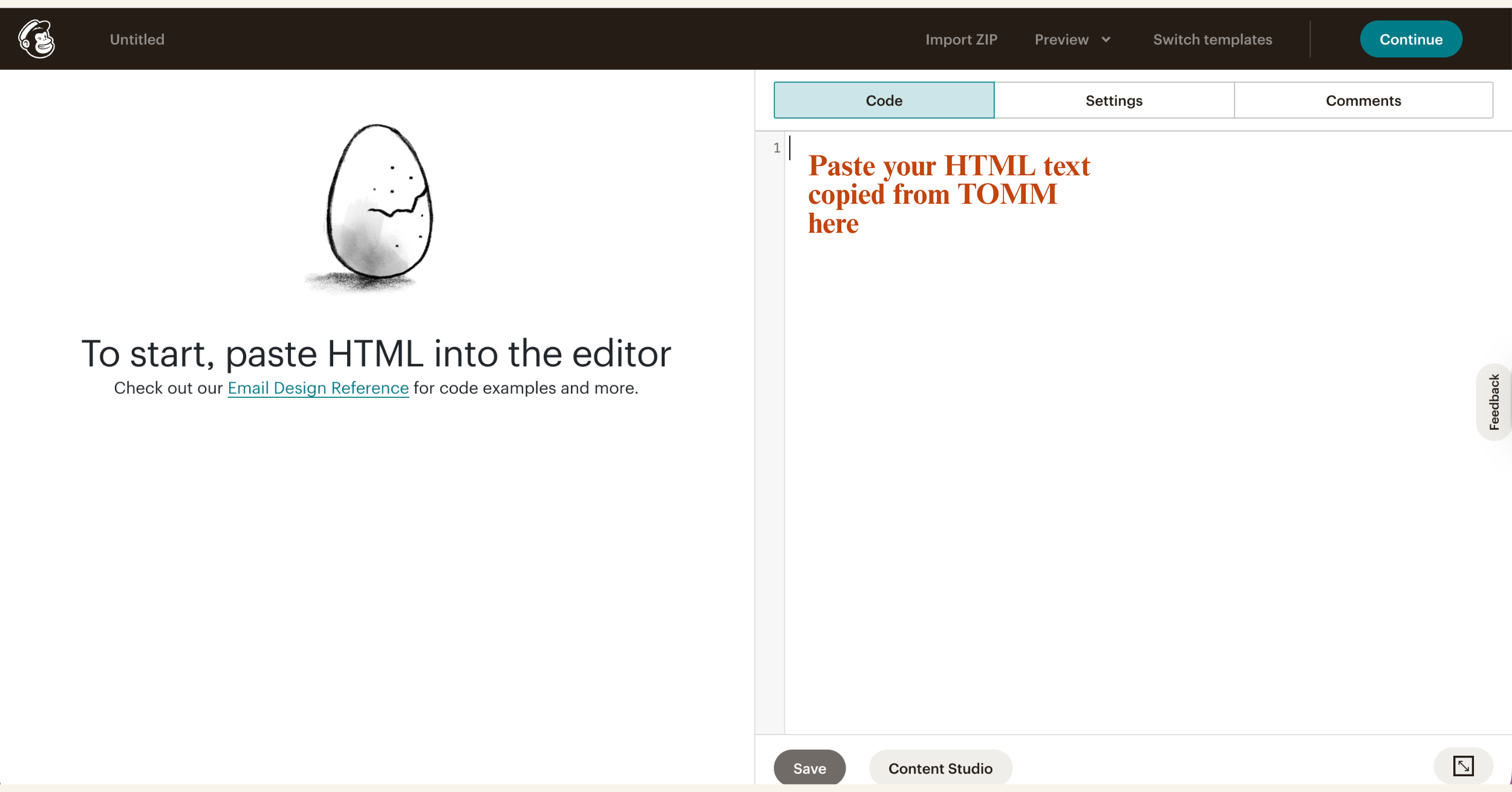
- 6Check the preview on the left, then click Continue.
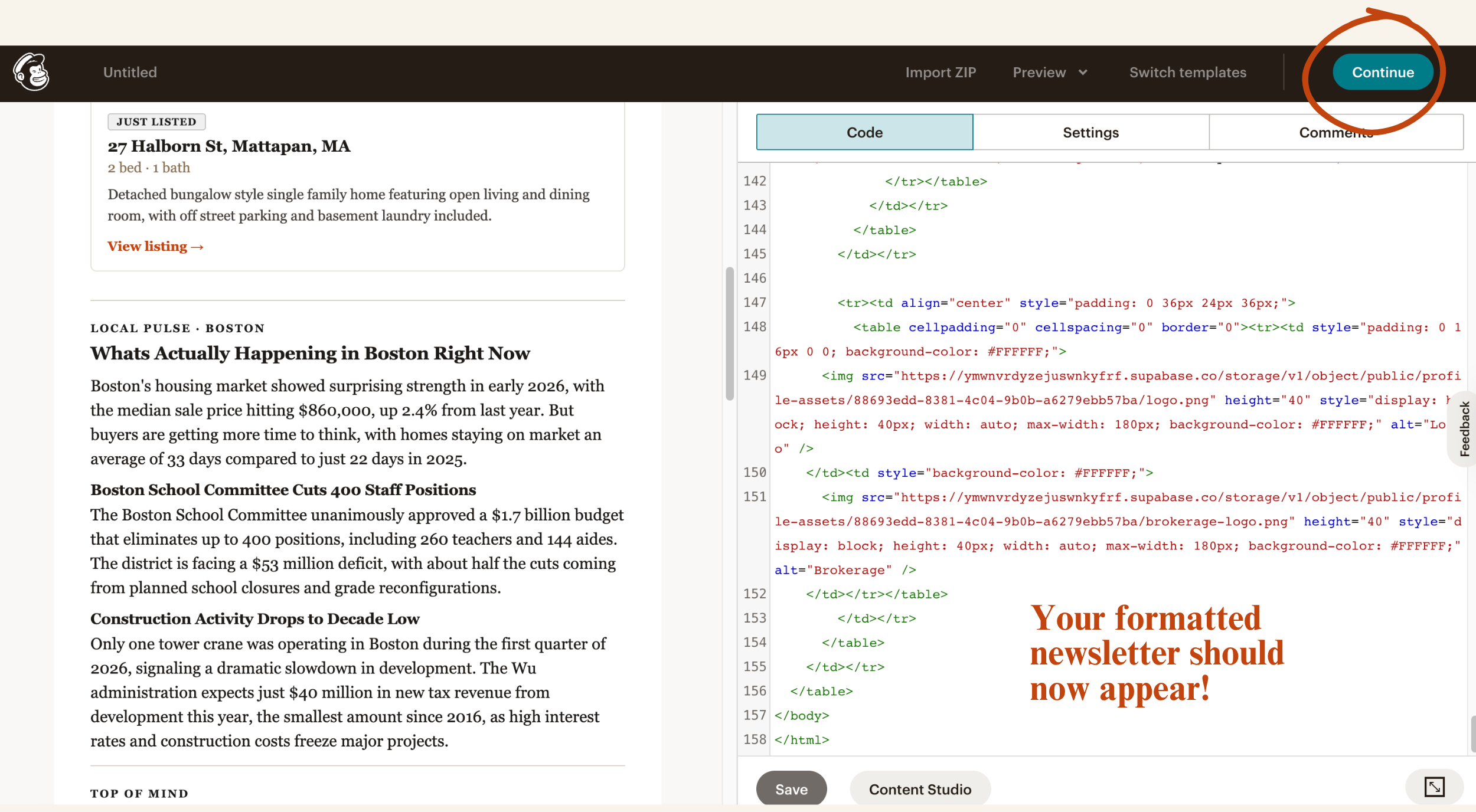
- 7Set your From name and Subject, pick your audience, and send or schedule.
Good to know
- · If Mailchimp warns about "missing merge tags," ignore it. TOMM emails are already personalized.
- · If it flags missing alt-text on layout tables, ignore that too. Those tables are decorative.
kvCORE
Paste your HTML into kvCORE's source view, save, and send to a smart list.
- 1In your TOMM dashboard, open your newsletter and click Done.
- 2Click Copy HTML Code.
- 3In kvCORE, open Marketing → Mass Email (or open an existing campaign you want to update).
- 4In the email body editor, click the Source (or </> Code) toggle in the toolbar.
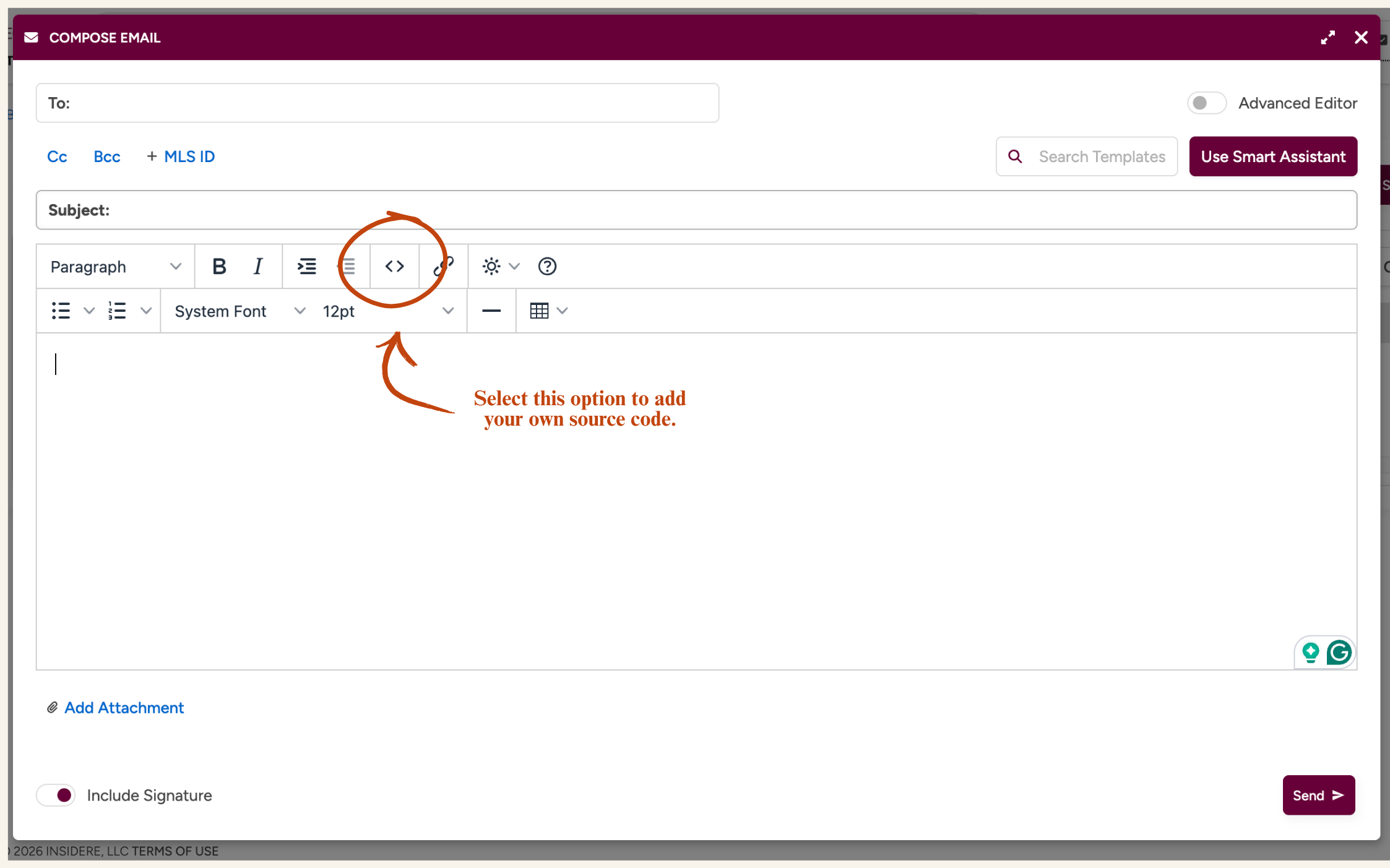
- 5Select everything in the source view, delete it, then paste your TOMM HTML. Click Save.
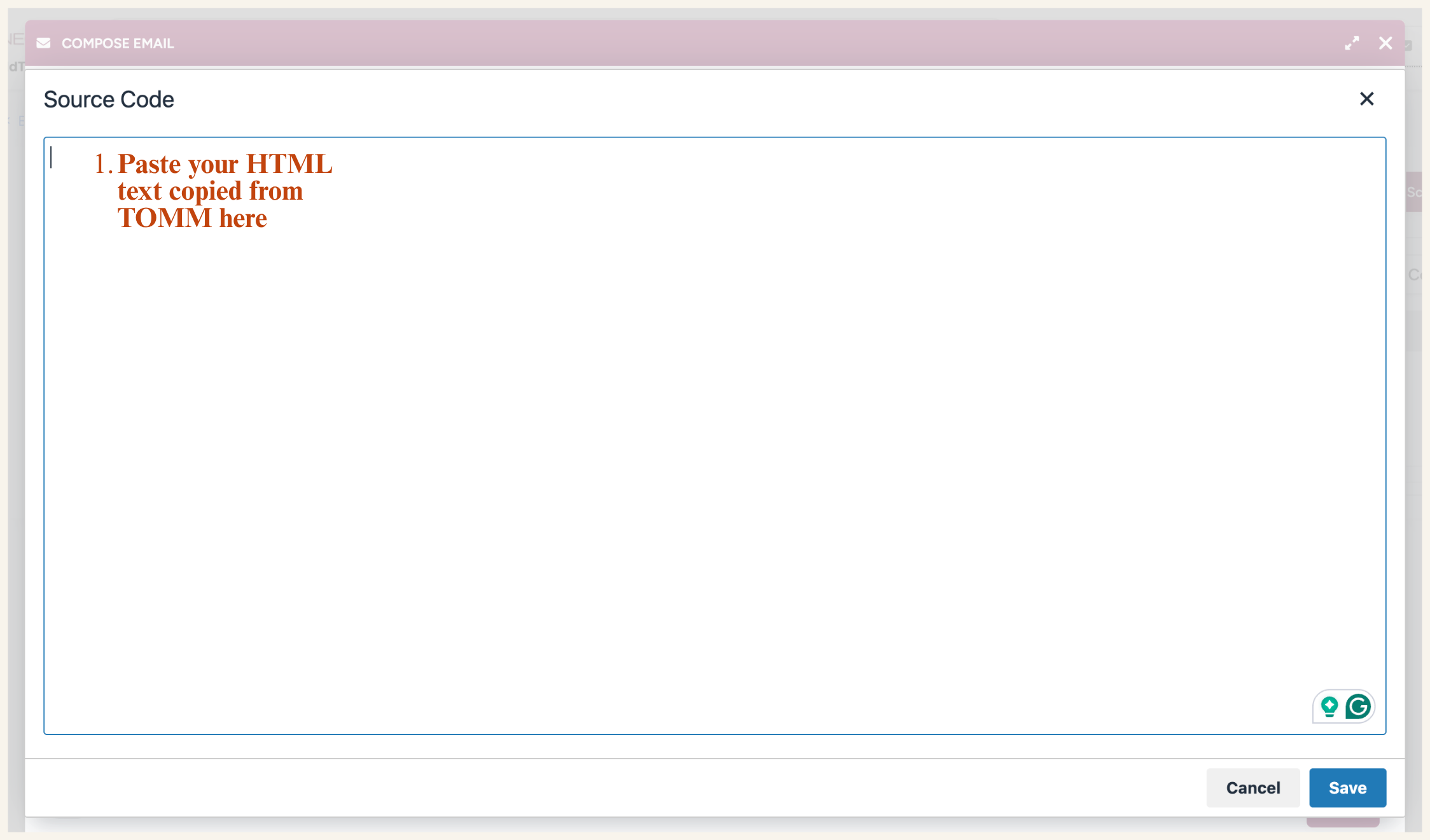
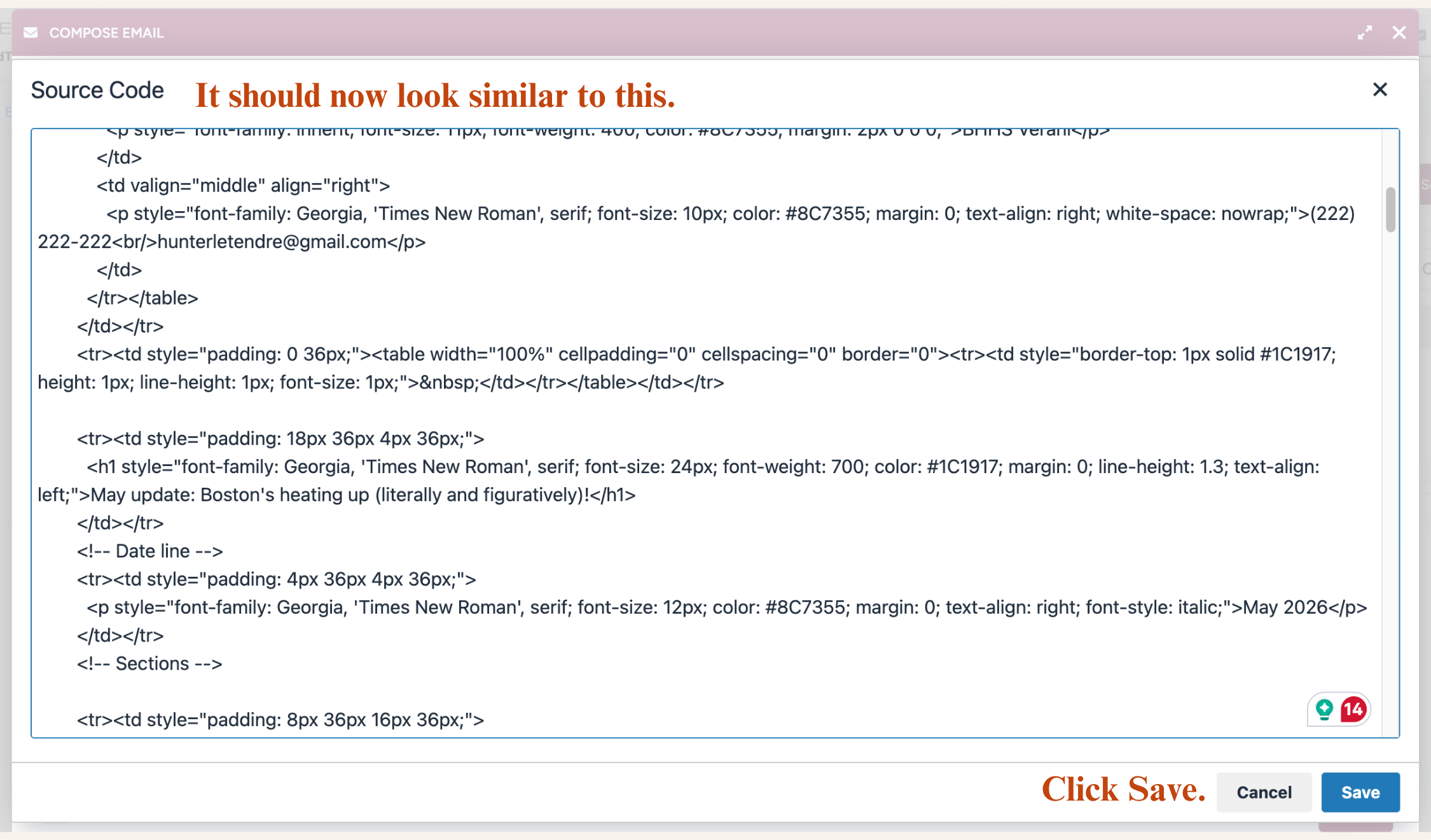
- 6Toggle back out of source view to confirm the preview renders correctly.
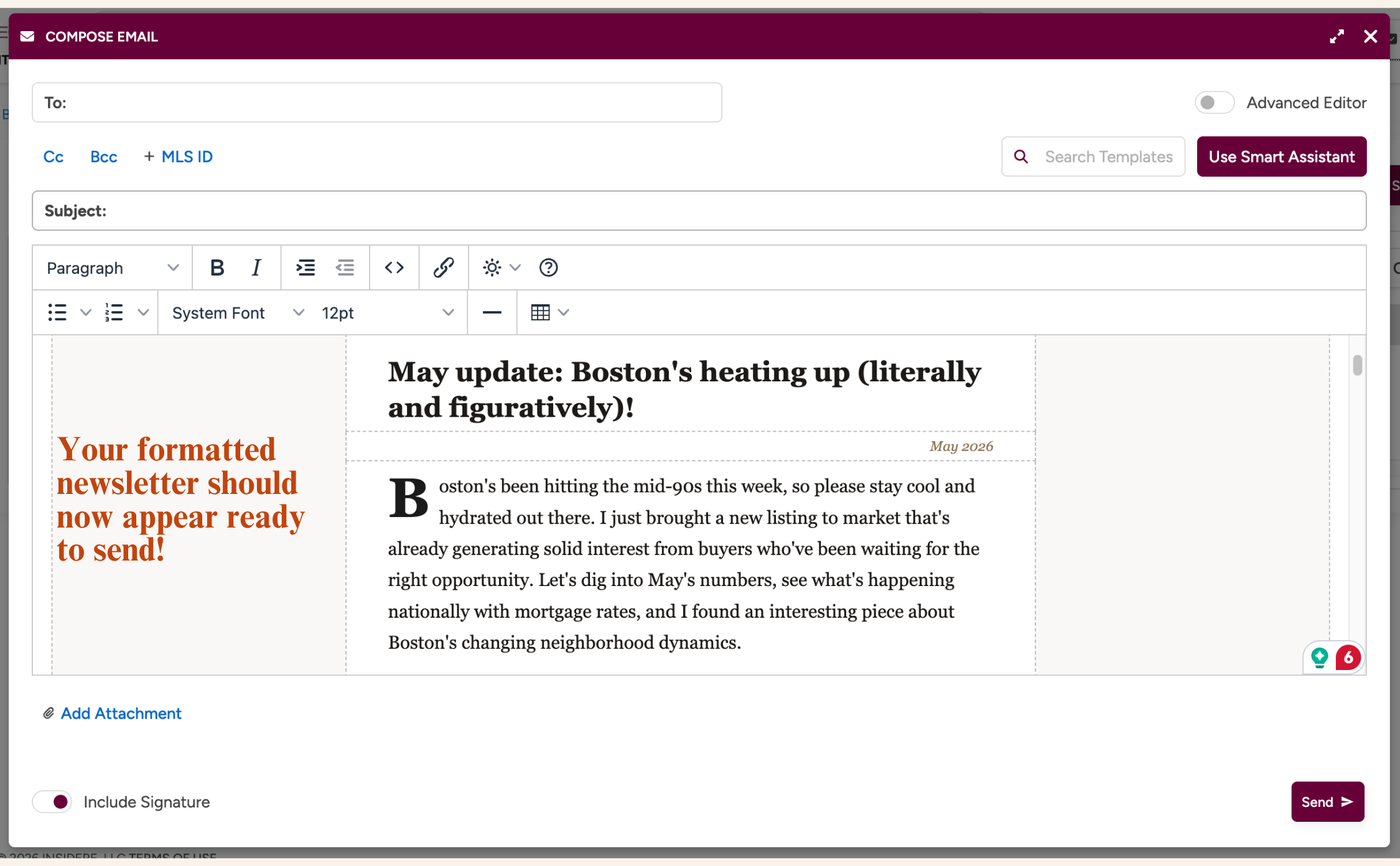
- 7Set the subject line from the TOMM modal, pick your smart list, and send or schedule.
Good to know
- · kvCORE may strip some inline styles if your campaign template enforces brand defaults. Preview before sending wide.
- · Send yourself a test first. The delivered email is the source of truth, not the preview pane.
Follow Up Boss
Paste your HTML into a saved FUB template, then send to any group or smart list.
- 1In your TOMM dashboard, open your newsletter and click Done.
- 2Click Copy HTML Code.
- 3In Follow Up Boss, go to Admin → Email Templates → New Template.
- 4Click the </> Source toggle in the toolbar.
- 5Paste your HTML, then toggle back to confirm the preview.
- 6Save the template.
- 7From your dashboard, click Email → Use Template, pick your newsletter, set the subject, and send.
Good to know
- · FUB's preview can render smaller than the delivered email. Always send yourself a test first.
- · For batch sends over a few hundred contacts, make sure your sending email is verified. Cold domains can hit spam filters.
Other systems
TOMM's HTML works in any email or CRM tool that accepts a custom HTML paste, and most do. The flow is similar everywhere: find the source-code or HTML view, paste, save, send.
Also works with
- · Constant Contact
- · HubSpot
- · BoomTown
- · Chime / Lofty
- · Sierra Interactive
- · LionDesk
- · Wise Agent
- · Real Geeks
Don't see your CRM here? It probably still works. Open the help chat from your dashboard and we'll walk you through it.
Still stuck? Open the help chat from your dashboard, or email hello@topofmindmail.com.